


How to Evaluate B2B Data Vendors for Accuracy and Compliance
LinkedIn profiles often show job titles, company names, and career histories—but the one thing you actually want, a direct email or phone number, is frequently missing. That’s because LinkedIn’s Contact Info section is user-controlled, and most professionals either leave it blank or lock it down to connections only.
This guide covers where to find LinkedIn contact info, why it’s often hidden, and practical methods to get verified emails and phone numbers when the native section comes up empty.
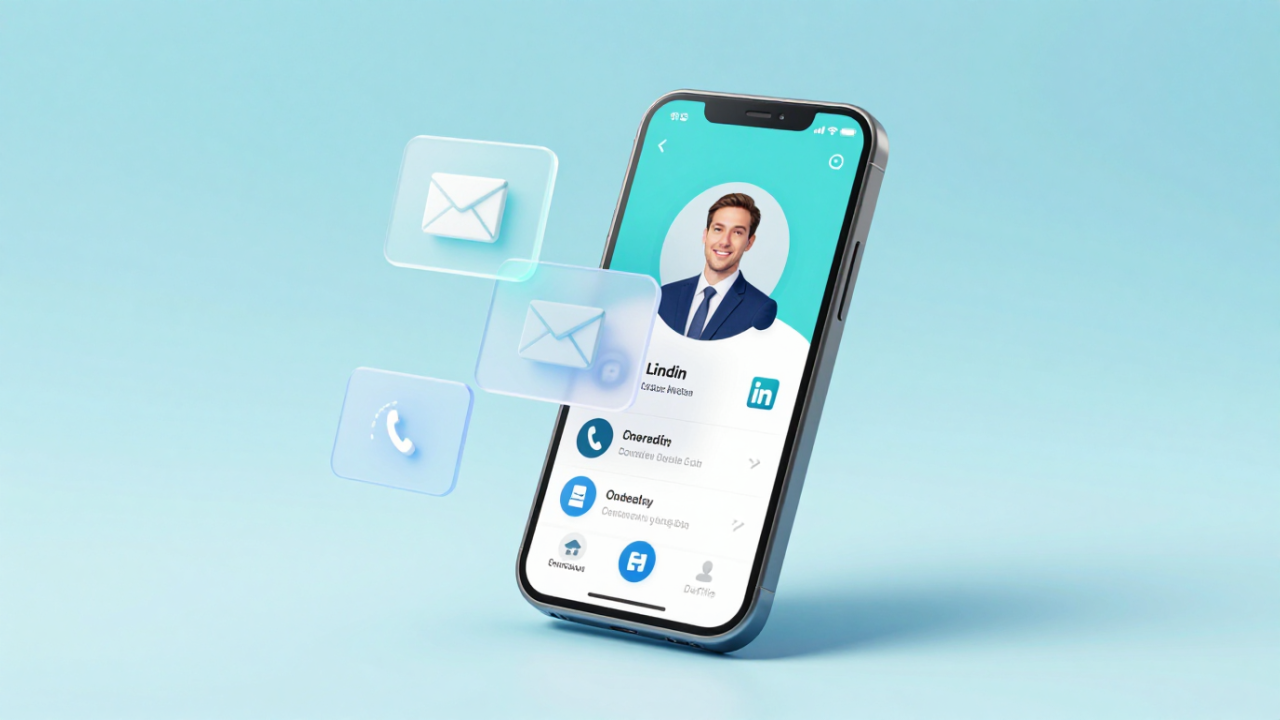
The LinkedIn Contact Info section is a small but important part of every LinkedIn profile where users can share their professional contact details, things like email addresses, phone numbers, websites, and social links. You’ll find it tucked into the introduction card at the top of a profile, right below the photo and headline. The idea is simple: give connections a way to reach out directly instead of relying only on LinkedIn messages.
Here’s the catch, though. This section is completely user-controlled. Each person decides what to add and who gets to see it. Some professionals share their work email openly, while others leave the whole thing blank or lock it down to first-degree connections only. So when you click on someone’s Contact Info and find nothing there, that’s usually a deliberate choice on their part.
Finding the Contact Info section takes just a few clicks, and the process is nearly identical on desktop and mobile.
On desktop, go to the person’s profile and look for the “Contact info” link in the introduction card—it’s usually near the connection count or location line. Click it, and a small pop-up window appears with whatever details that person has chosen to share.
Desktop path: Profile page → Introduction card → Click “Contact info”
Mobile path: Profile → Tap “Contact info” below the profile photo
If you don’t see a Contact Info link at all, the user either hasn’t added any details or has set visibility so that people at your connection level can’t view it.
Email is what most people are looking for when they click Contact Info. Users can add multiple addresses—personal, work, or both—and pick who can see them. That said, many professionals skip this field entirely or restrict it to direct connections only.
LinkedIn lets users list a mobile or work number, but this field often sits empty. Most people prefer not to share phone numbers on a public-facing platform, especially if they’re trying to avoid cold calls.
Beyond email and phone, users can add links to personal websites, portfolios, company pages, or social profiles like Twitter/X. When direct contact details aren’t available, checking these links can help you find alternative ways to reach someone or learn more about their work.
LinkedIn also offers fields for physical address and birthday. In practice, almost no one fills these out on a professional profile—there’s just not much reason to share that information publicly.
Quick summary of Contact Info fields:
What you can see in someone’s Contact Info depends a lot on how you’re connected to them. First-degree connections, people who’ve accepted your connection request—typically see more details than second or third-degree contacts.
For people you’re not connected to, visibility is often limited or blocked entirely unless they’ve set their info to “public.” When that happens, your options within LinkedIn are either sending an InMail (which requires a Premium subscription) or requesting a connection with a personalized note.
If you’ve clicked on Contact Info and found it empty, you’re definitely not alone. The most common reason is privacy settings. LinkedIn’s defaults lean toward restricted visibility, and many users never bother to change them.
On top of that, plenty of professionals intentionally leave fields blank. They’re trying to avoid unsolicited outreach from salespeople and recruiters. Some companies even discourage employees from sharing work contact details on social platforms as a matter of policy.
Common reasons contact info is missing:
When the native Contact Info section comes up empty, you still have several paths forward. The options below range from quick and free to more robust paid solutions, each with different tradeoffs.
Always start here. Click the Contact Info link on the profile to see what the user has shared. It’s free, takes seconds, and occasionally you’ll find exactly what you’re looking for. More often, though, it’s incomplete or restricted for non-connections.
Browser extensions sit on top of LinkedIn and pull verified contact data from external databases. As you browse profiles or Sales Navigator results, the extension displays emails and phone numbers in real time—without leaving the platform.
ReachStream’s Chrome Extension is a powerful tool designed to streamline LinkedIn prospecting by providing access to verified B2B contact data directly within LinkedIn and Sales Navigator. It allows users to view, save, and export contact details such as business emails, phone numbers, job titles, departments, and company information. The extension integrates seamlessly into your workflow, enabling you to gather lead data without leaving the LinkedIn platform. ReachStream boasts a 7-step verification process for its data, ensuring high accuracy, and offers unlimited data downloads for users on its Polar Peak Plan.
To install the ReachStream Chrome Extension:
Standalone B2B databases let you search by name, company, title, industry, or location to find contact details. These platforms aggregate data from multiple sources and typically verify it before displaying results, which tends to improve accuracy compared to manual research.
For teams running high-volume prospecting, API-based enrichment integrates directly into CRMs or internal tools. Instead of looking up contacts one by one, you can automate the process and enrich records in bulk. This approach works well when manual lookups aren’t practical.
As a fallback, you can check company team pages, press releases, or public directories. This method is slow and manual, but it occasionally turns up details that aren’t available through other channels.

The market offers several categories of tools for finding LinkedIn contact info, and each fits different workflows.
ReachStream brings together LinkedIn lead capture, a 7-step verification process, and direct CRM export—so you can find, verify, and sync contacts without switching between tools. The Chrome extension works inside LinkedIn and Sales Navigator, surfacing verified emails and phone numbers as you research prospects.
Key features include:
Sales Navigator offers powerful filtering for building lead lists, but it doesn’t export contact info on its own. To capture verified emails and phone numbers at scale, you’ll typically pair Sales Navigator with a third-party tool.
Start by using Sales Navigator’s advanced filters—title, industry, company size, geography, seniority level—to narrow down your target audience. Once you’ve identified promising leads, save them to a list within Sales Navigator for easy access later.
Next, use a Chrome extension or enrichment tool to pull verified contact data for your saved leads. With ReachStream’s extension, you can do this directly within Sales Navigator without switching tabs or copying names into another platform.
Once your leads are enriched, export them to your CRM or outreach tool. Most platforms offer direct connectors for Salesforce, HubSpot, and similar systems, or you can download a CSV file and import manually.
While this article focuses on finding other people’s contact info, some readers want to update their own profile. Here’s a quick walkthrough.
Navigate to your profile and look for the pencil icon or “Contact info” link in the introduction card. Click it to open the editing window.
From here, you can add or update your email, phone number, website, address, birthday, and social links. Fill in whatever you’re comfortable sharing publicly or with connections.
After saving, adjust the visibility settings for each field. Options typically include “Only you,” “Your connections,” or “Public.” Keep in mind that these settings determine who can see your details when they visit your profile.
Compliance is a fair concern when using third-party tools to find contact data. Generally speaking, using publicly available or user-shared data for legitimate business outreach is permissible under regulations like GDPR and CCPA. However, LinkedIn’s Terms of Service do restrict certain automated scraping methods.
The safest approach is to use tools that verify data ethically and respect user privacy. ReachStream, for instance, is GDPR compliant and uses a multi-step verification process to ensure data accuracy and responsible sourcing.
ReachStream brings together LinkedIn lead capture, verification, enrichment, and CRM sync in one platform. Instead of juggling multiple tools, you can move from profile to outreach in a single workflow.
Key benefits include:
Accuracy varies by source. Native LinkedIn data is user-entered and can be outdated, while third-party tools that use multi-step verification typically deliver higher accuracy—often above 95% for verified records.
You can view whatever the user has made public for free. However, verified emails and phone numbers for non-connections usually require a paid prospecting tool or database subscription.
Sales Navigator provides advanced search filters and lead management features, but it doesn’t display additional contact info beyond what users have shared on their profiles. The contact details are the same—you just get better tools for finding and organizing leads.
Use a Chrome extension or B2B data platform that captures contact details and offers direct CRM integration or CSV export. Most tools support popular CRMs like Salesforce and HubSpot out of the box.
The user may have set their email visibility to private, or they simply haven’t added an email address to their Contact Info section. Privacy settings override connection status, so even first-degree connections can be blocked from seeing certain fields.
Marketing professional with a Master’s degree in Marketing, specializing in SEO, content strategy, social media, performance marketing, prospecting, and demand generation.
Access 200M+ verified business emails and grow your sales pipeline effortlessly.
Don't forget to share this post!















Check out our other blogs!
The Complete Guide to B2B Data Verification in 2026

Cold Email vs. LinkedIn Outreach: Which Wins in 2026?
How Many Follow-Ups Should a Cold Email Sequence Have?
ReachStream Prospect vs. Prospeo: Which Delivers More Accurate Data